Lift Your Tokens to Voucher Ledger
Move VOW, ERC20, ERC777 or ETH to the Voucher Ledger from Ethereum.
Use the Lifting Dapp
The LIFTING DAPP is an easy-to-use tool for lifting tokens from Ethereum to Voucher Ledger. No need to interact directly with smart contracts.
Lift manually
Go through the motions of interacting with the Ethereum smart contract manually.
- Step 1
- Step 2
- Step 3 Lift VOW
- Step 4 Confirmation
Go to eth-converter and enter the amount of whole VOW to be lifted as Ether.
Copy the resultant Wei value.
This is for the Mainnet and not the Testnet
- Go to the VOW contract
- Click
Connect to Web3and follow the guide below.
Connecting your Wallet to the Smart Contract
- ✅ Metamask browser extension.
- ✅ Metamask mobile wallet app.
When using Metamask mobile you would have to use it's integrated browser to access the contracts in this guide. So copy the links to the contracts from this page and paste them into the integrated browser in the Metamask mobile app.
Ensure your Metamask is currently pointing to the correct account i.e. the account that holds VOW and that the network is currently set to Ethereum mainnet.
Interacting with the Smart Contract
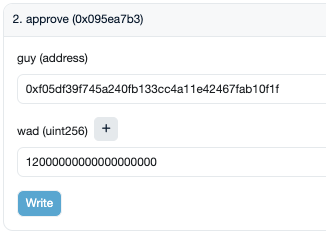
- Expand method 2. approve on the VOW contract and enter:
The below image is an example.
-
guy (address): 0xb01eF958F37E999a5528D14F825Cd429596F3864 -
wad (uint256): Fill with the resulting wei value from Step 1 -
Click
Write, then check the details and Confirm in the Metamask pop-up
Wait for the transaction to be mined successfully (i.e. succeeded on etherscan).
Go to the VL contract.
-
Click
Connect to Web3(ensuring your Metamask is currently pointing to the correct account i.e. the account that holds VOW) -
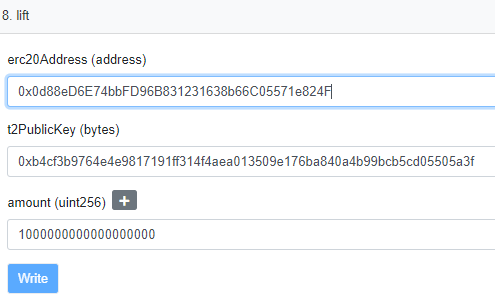
Expand method 8. Lift and enter:
-
erc20Address: Insert the contract address of the VOW token 0x1BBf25e71EC48B84d773809B4bA55B6F4bE946Fb. -
t2PublicKey: The public key (NOT the address) of the VL account you’re lifting to. If you're using the wallet, the public key of your Voucher Ledger address can be found in the wallet. -
amount: The amount you previously approved as the ‘amount’. -
Click
Writeand Confirm the transaction in Metamask.
The below image is an example
Save the transaction hash
After 10 minutes go to the VL Explorer. Put the t2PublicKey value in the search bar and you should see your new balance reflected there. Ensure you are on the mainnet tab of the explorer.